Learn how to manage your supplier data requests efficiently by restarting pending items and updating contact information in Secaro. This guide simplifies the process of reviewing and resending requests to ensure your supplier documentation remains accurate.
1. Click "Manage"
2. Click "Data requests"
Filter Requests
3. Search for supplier name
4. Click the search icon in the supplier field.
Restart Requests
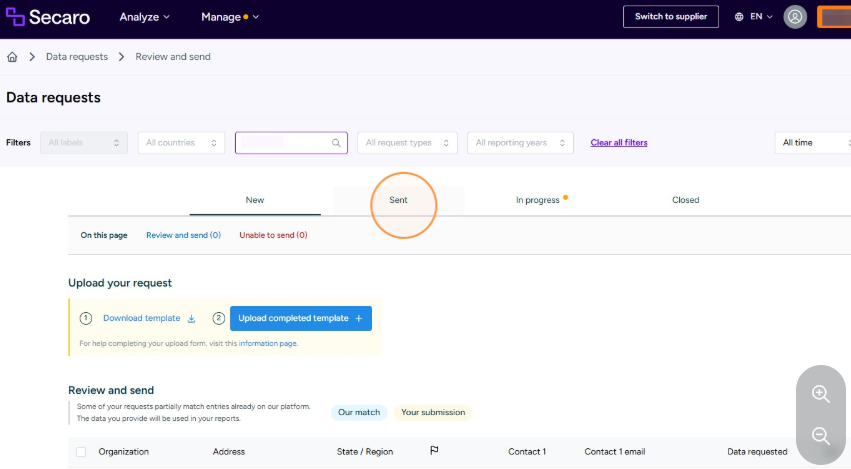
5. Click "Sent" - this is where most requests are
6. Click this checkbox to select All.
7. Click "Restart requests"
8. Click "New"- this is where restarted requests are sent to.
Edit Request Details
9. Click on the request to amend.
10. Click on the pencil icon
11. Amend the contact information
12. Click "Save"
13. Close the request details dialog.
14. Select all displayed requests.
Preview Requests
15. Click "Preview and send"
Related to